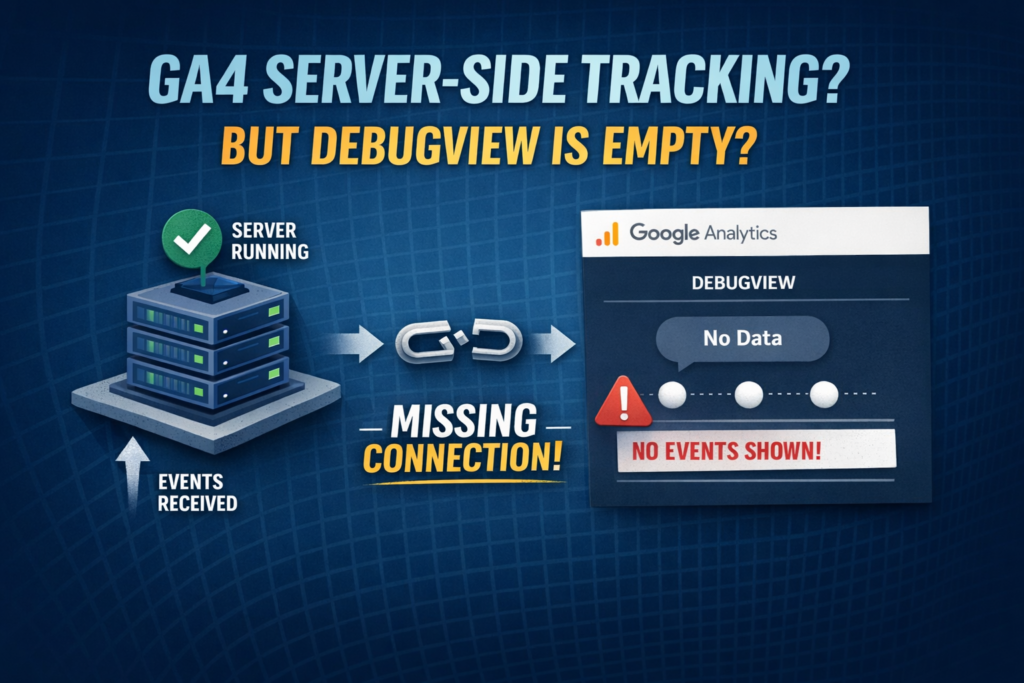
Moving to server-side tracking is a major step toward better data control, privacy compliance, and improved tracking accuracy. However, many marketers and developers face a frustrating issue after setting up their server container — GA4 DebugView shows empty white dots or no events at all, even though the server container status shows “Running.”
If requests are reaching your server container but nothing appears in GA4, the issue is almost always related to how events are forwarded to Google’s servers.
The Missing Link: Outgoing HTTP Requests
One of the most common causes of an empty GA4 DebugView is that the Server Container is receiving hits but not forwarding them to GA4.
When you open GTM Server Preview mode and see “Outgoing HTTP Requests: None”, it means no server-side tag is sending the collected data to Google Analytics. In simple terms, your server is collecting data but not delivering it anywhere.
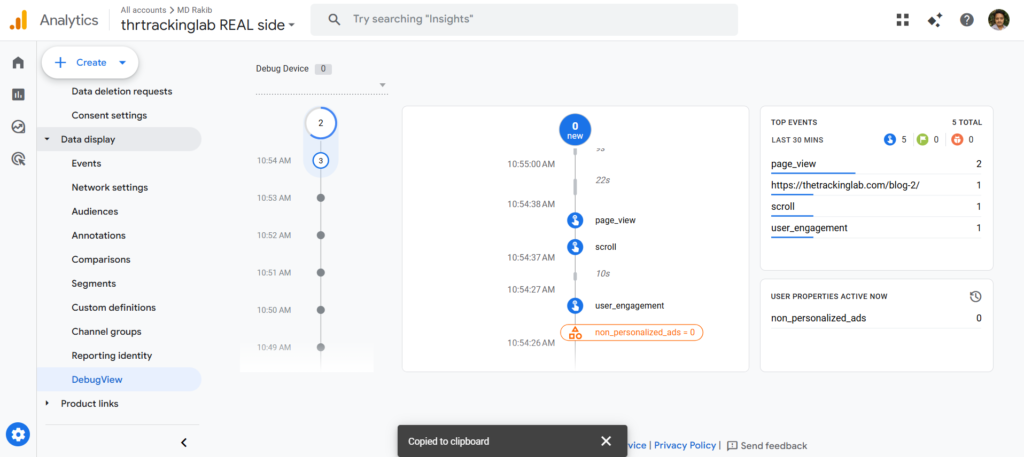
A successful DebugView showing populated events like page_view and scroll after proper configuration.
Step-by-Step Resolution
1. Create the GA4 Server Tag
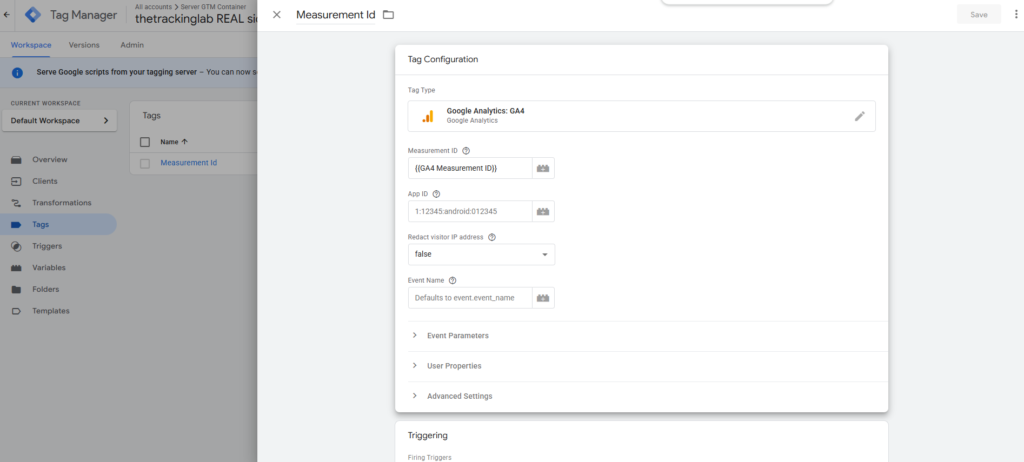
Inside your GTM Server Container, you must create a Google Analytics: GA4 tag that forwards incoming events.
Important settings:
Measurement ID: Enter your GA4 Measurement ID (format: G-XXXXXXXXXX)
App ID: Leave this field blank for web tracking. Adding an App ID can cause conflicts unless you are sending mobile app data.
Redact Visitor IP: Set to False if you require more accurate geo data or higher match quality when using Facebook Conversions API (CAPI)
This tag acts as the bridge between your server container and GA4.
Ideal configuration for the GA4 Server-side Tag.
2. Implementing the “All Events” Trigger
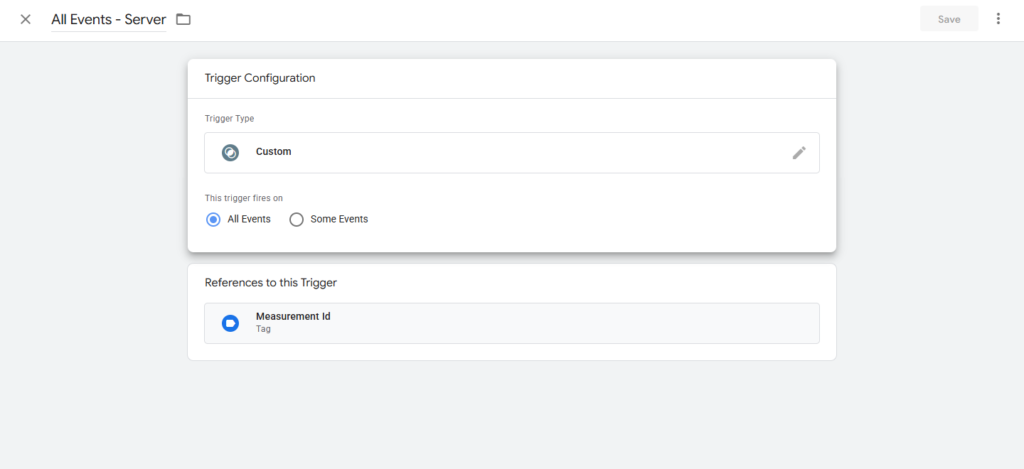
Unlike web containers where triggers are tied to browser actions, server containers need a trigger that processes every incoming request.
To do this:
Create a new Trigger
Choose Trigger Type: Custom
Select All Events
This ensures every event received by the GA4 Client is forwarded to your GA4 property.
Setting up a Custom Trigger to capture all incoming server events.
3. Validation in Preview Mode
After publishing the server container:
Open GTM Server Preview
Visit your website
Select an incoming request
You should now see:
The GA4 Client claiming the request
A GA4 Server Tag firing
An Outgoing HTTP Request sent to google-analytics.com/g/collect
Once this appears, your GA4 DebugView should begin displaying events such as page_view, scroll, and other tracked interactions.
Conclusion
Server-side tracking is not just about routing traffic through a server endpoint — it requires proper event forwarding and tag configuration.
If your GA4 DebugView is empty, always check for:
✔ A properly configured GA4 Server Tag ✔ An “All Events” trigger ✔ Successful Outgoing HTTP Requests
Fixing these ensures your first-party tracking setup works reliably and your analytics data remains accurate and complete.