Server-side tracking (SST) is no longer a luxury—it’s a necessity for accurate data in a cookie-less world. However, setting it up via Google Tag Manager (GTM) and Stape.io often comes with technical hurdles. If your Server Container isn’t receiving data or showing “No Summary,” this guide is for you.
Step 1: Proper Subdomain & DNS Configuration
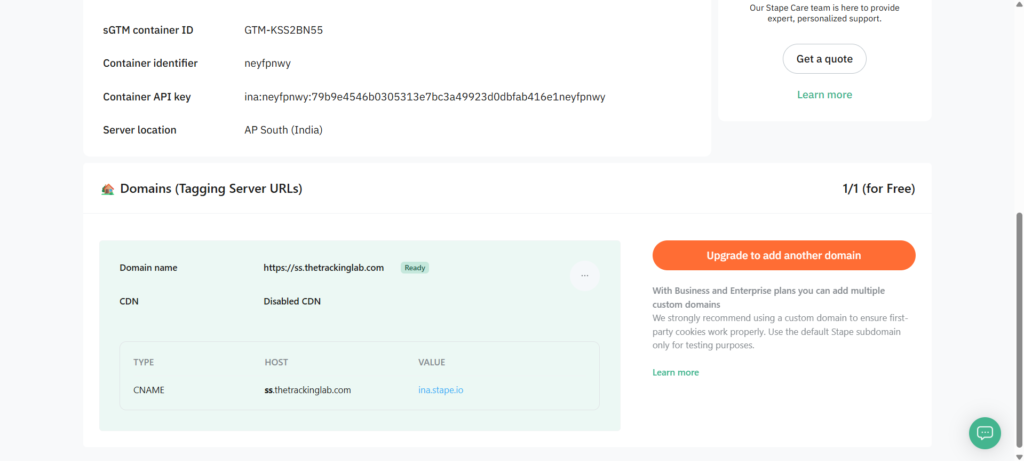
Before diving into GTM, ensure your custom subdomain (e.g., ss.yourdomain.com) is pointing to Stape. In your hosting (like Hostinger), use an A or CNAME record as provided by Stape.
Ensure your custom domain status is ‘Ready’ in Stape before moving to GTM.
Step 2: Configuring the Google Tag in Web GTM
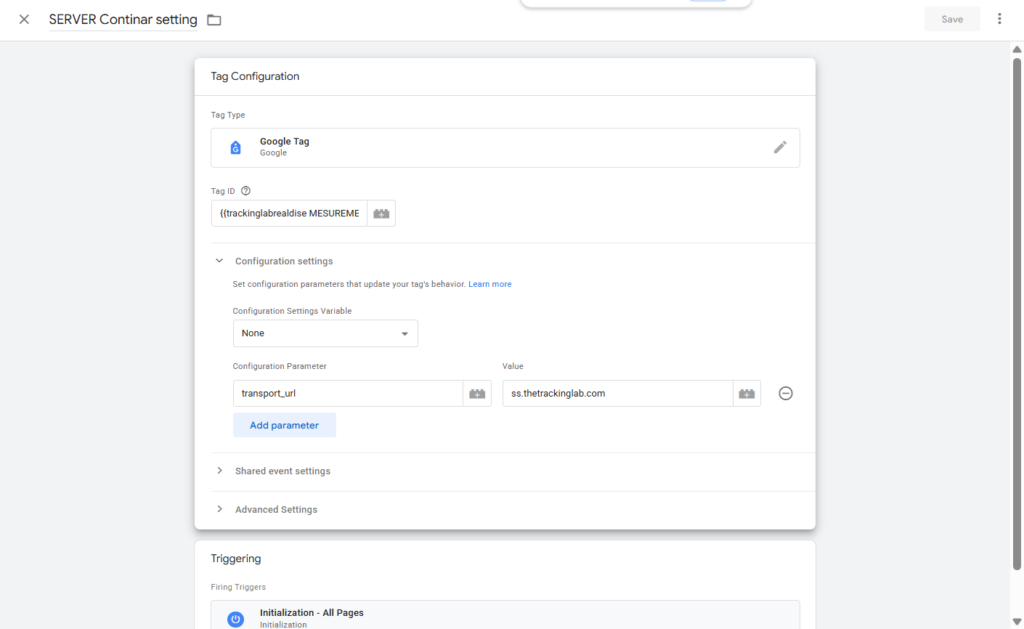
The most common reason for data not reaching the server is an incorrectly configured Google Tag. You must tell GTM to route data through your server, not directly to Google.
Key Action: Add the parameter transport_url.
Value:https://ss.yourdomain.com
Adding the transport_url parameter in the Google Tag configuration.
Step 3: Troubleshooting “No Data” in Server Container
Even with the correct URL, you might see a “No Summary” message. Here’s the fix:
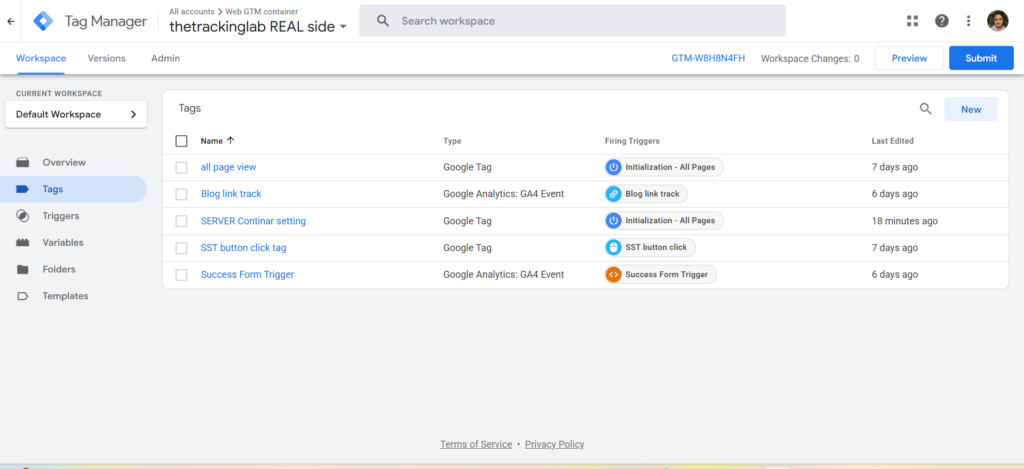
Check for Multiple Tags: Ensure all Google Tags on your site have the transport_url parameter. Conflicting tags can bypass the server.
Unpause Your Tags: A simple but overlooked mistake. Ensure your tags are active and not paused.
Hard Reload: Clear your browser cache (Ctrl+F5) to force the new GTM script to load.
Always verify that your tags are enabled and published.
Step 4: Verifying Incoming Requests
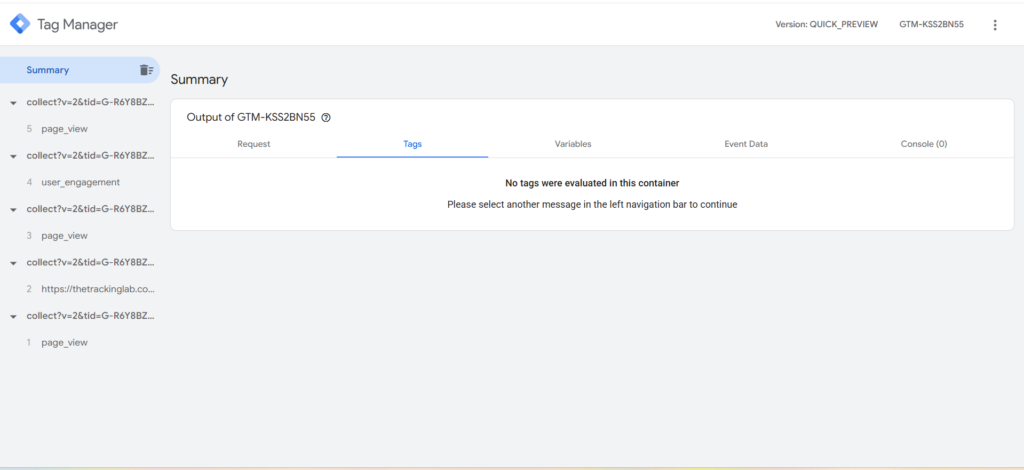
Success is confirmed when you see the “Incoming Requests” graph active in your Server GTM Preview mode.
The ‘Incoming Requests’ graph confirms a successful handshake between your website and the server.
[Conclusion]
Server-side tracking setup requires precision. By aligning your Stape configuration with GTM’s transport parameters, you bypass browser restrictions and reclaim your data accuracy.